Betterment 401(k) bulk upload tutorial for plan sponsors

Add your full employee roster in one upload. This step-by-step guide covers the CSV template, every field it asks for, and how to fix errors.Updated September 2, 2025 • 6 min read
b4b upload tutorial

Adding employees one at a time adds up fast. This step-by-step guide walks you through Betterment's bulk upload tool—from downloading the CSV template to clearing any upload errors—so you can add your full roster in a few minutes.

Step-by-step tutorial

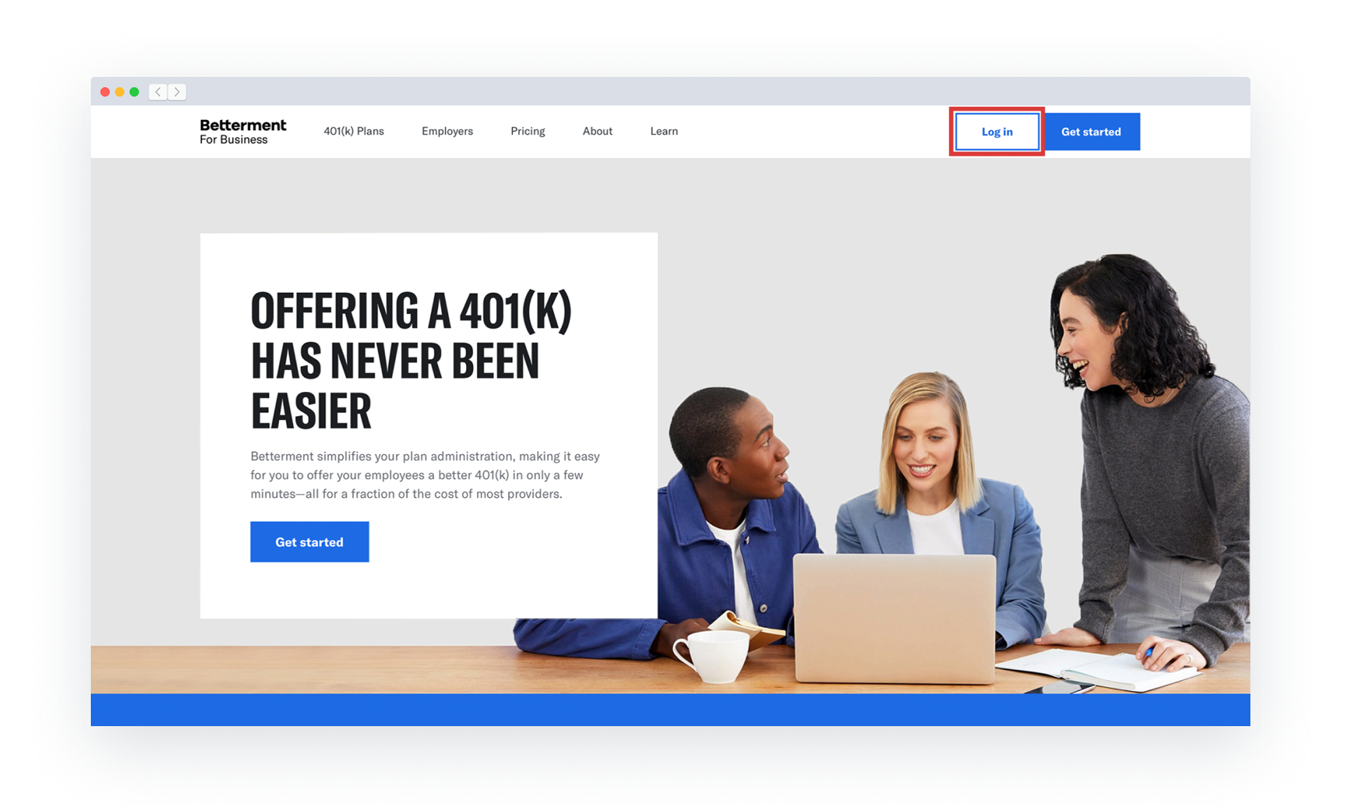
  1. Log in to the employer dashboard.

    The Betterment 401k home page. The Log In button in the top right hand corner of the page is highlighted.
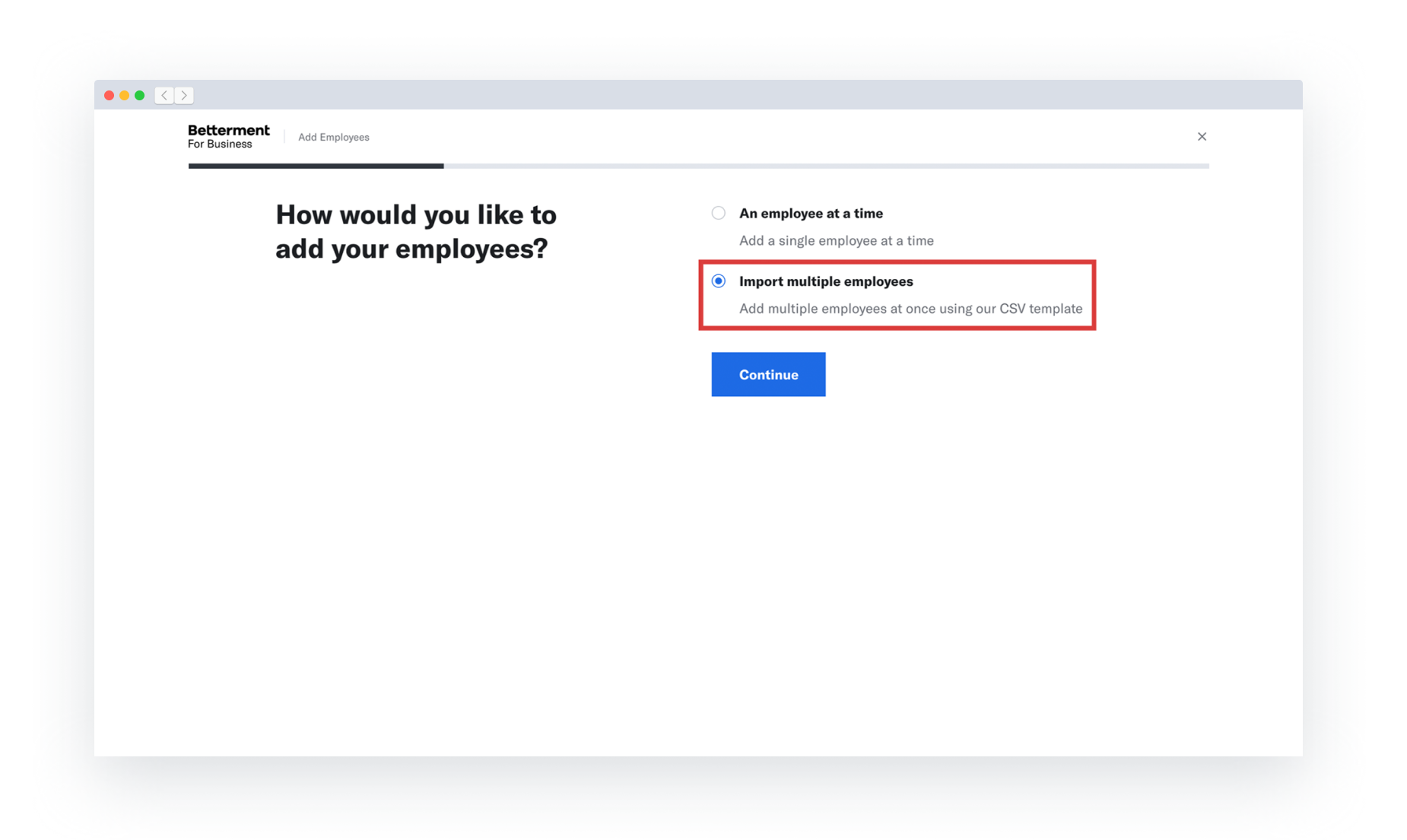
  2. Navigate to: employees → add employees → add multiple employees
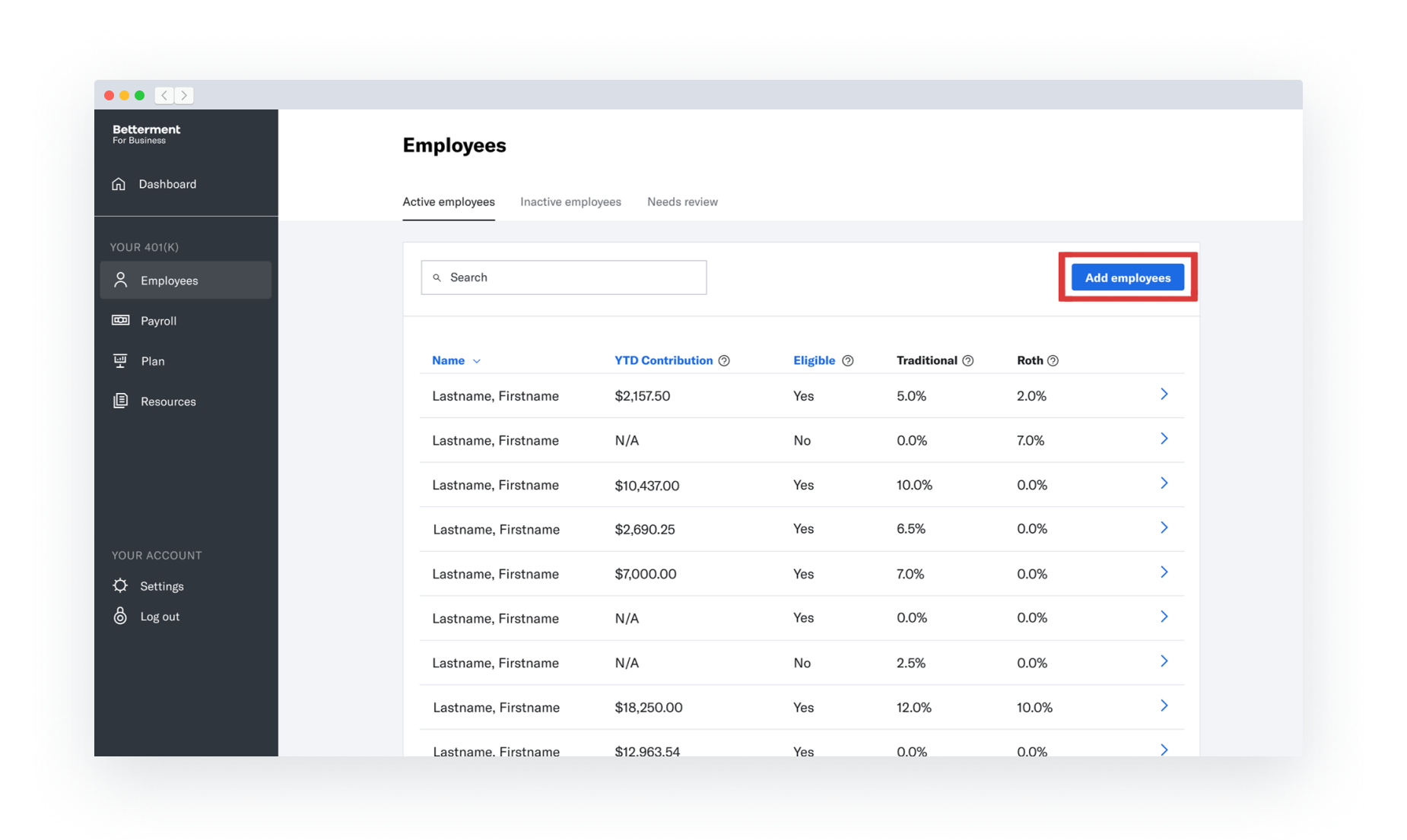
    The Employees page of the Betterment 401k Plan Sponsor Dashboard. The Add Employees button is highlighted. The first step of the Betterment 401k Employee Upload flow. The Import multiple employees option is highlighted.
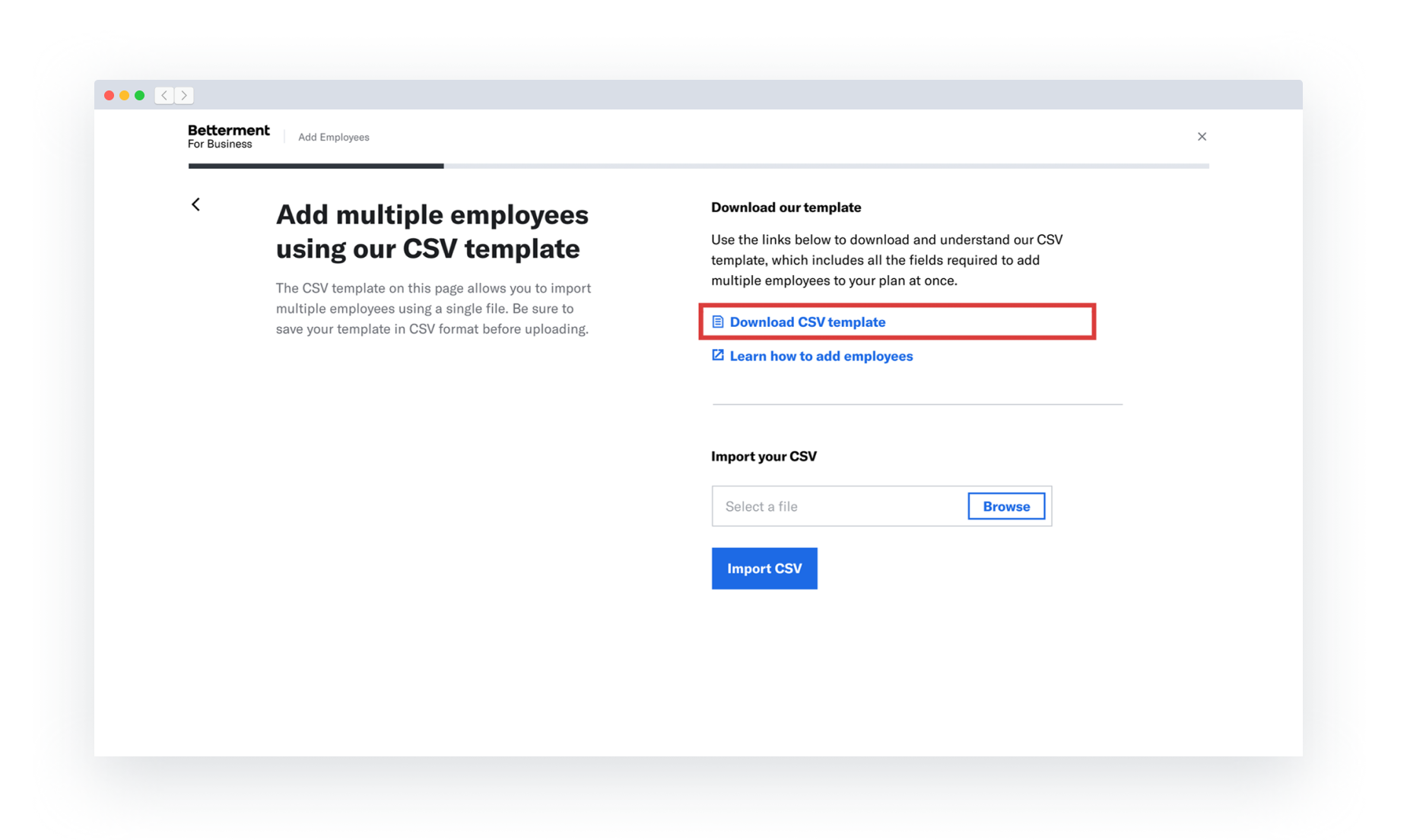
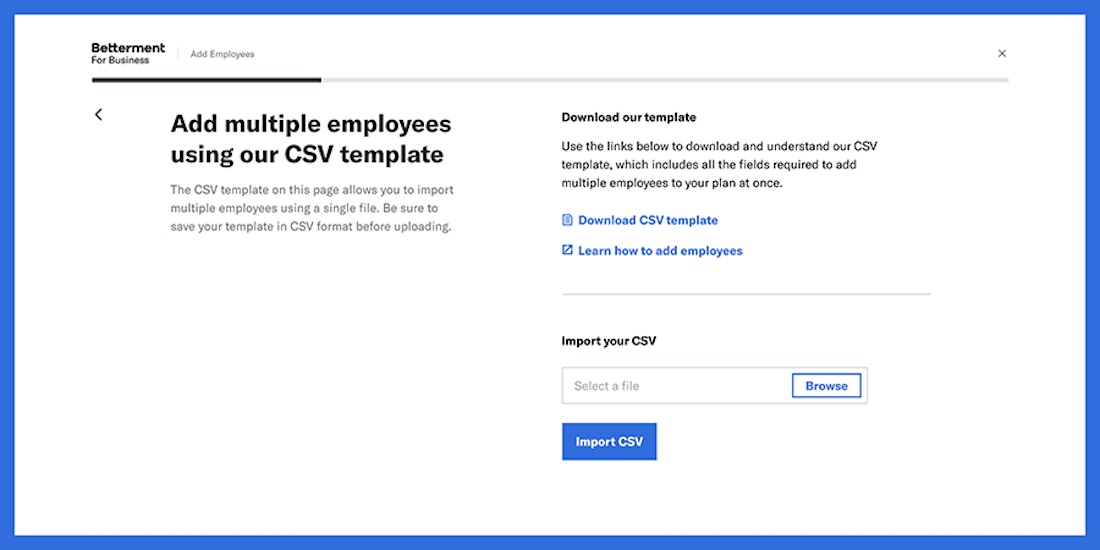
  3. Download the CSV template.

    The second step of the Betterment 401k Multiple Employee Upload flow. The Download CSV template link is highlighted.
  4. Open the CSV template using a program like Microsoft Excel, Apple Numbers, or Google Sheets.
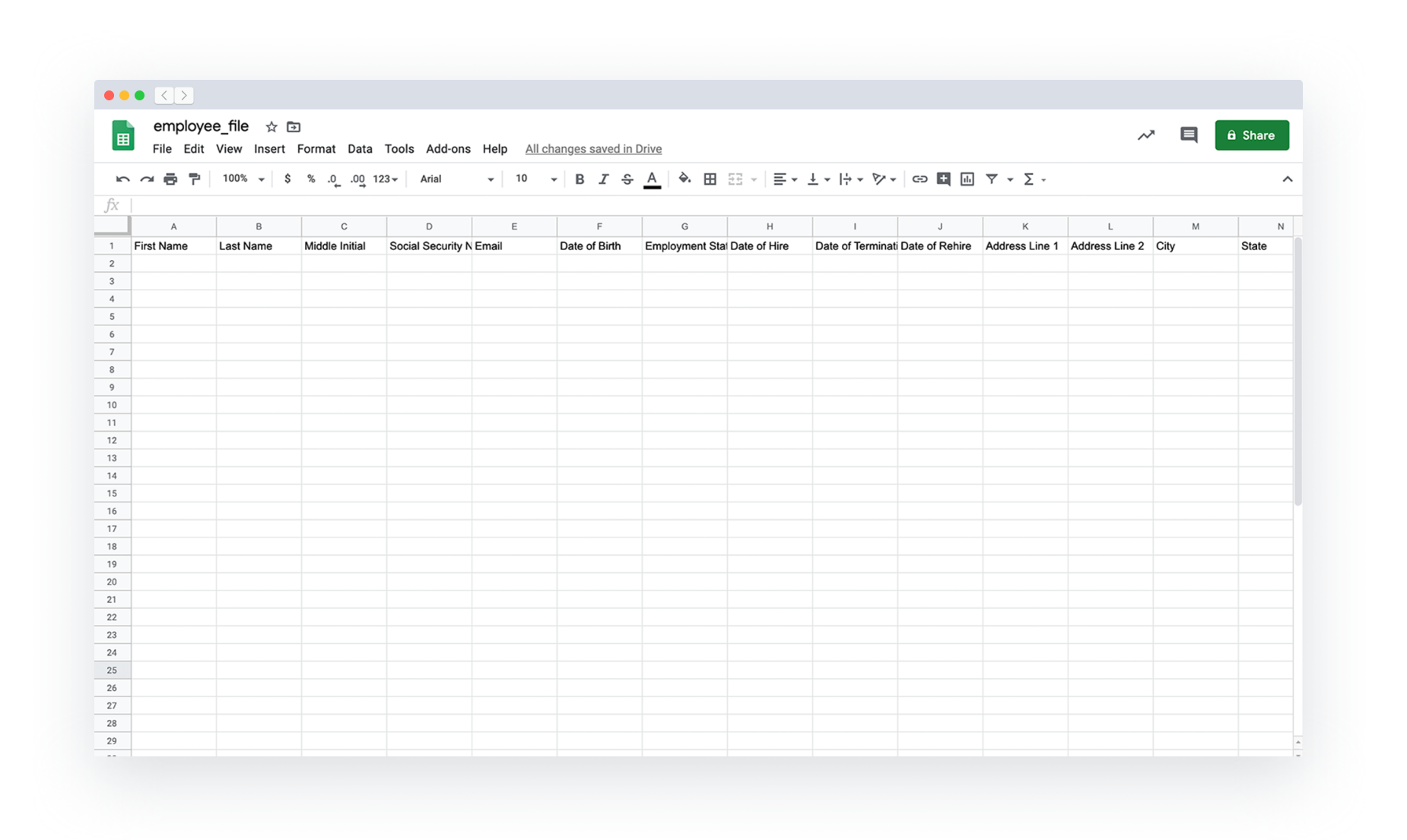
    A blank Multiple Employee CSV Template open in Google Sheets.
  5. Fill out one row for each employee you want to upload.
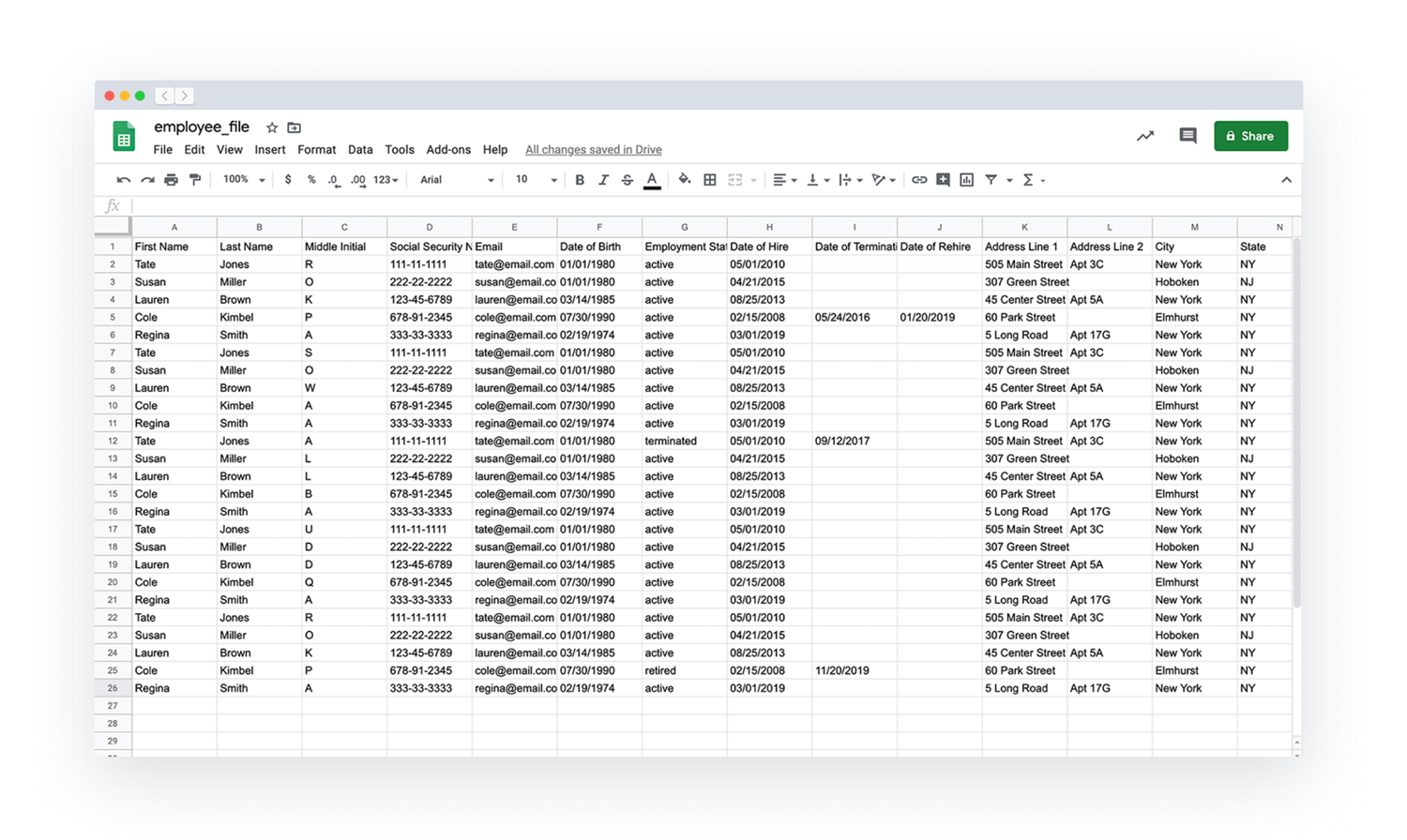
    A filled in Multiple Employee CSV Template open in Google Sheets.

Use the table below to understand the columns in the template:

ColumnDescription
First Name
  • The employee’s legal first name
  • No special characters accepted
Last Name
  • The employee’s legal last name
  • No special characters accepted
Middle Initial
  • Leave blank if the employee doesn’t have a legal middle name
Social Security Number
  • The employee’s government-issued Social Security Number
  • If the employee is not a US Citizen, a Social Security Number still needs to be provided
  • Social Security Numbers should be formatted with hyphens, e.g.: 123-45-6789
Email
  • Betterment uses email to complete the employee sign-up process and to send employees important plan notifications and updates
Date of Birth
  • Date should be formatted as MM/DD/YYYY
Employment StatusThis field accepts the following inputs:
  • active (currently employed)
  • terminated (formerly employed)
  • deceased (deceased)
  • disabled (on disability leave)
  • unpaid_leave (unpaid leave)
  • retired (retired former employee)
Date of Hire
  • Date of hire can be up to one year in the future
  • Date should be formatted as MM/DD/YYYY
Date of Termination
  • This field is required if Employment Status is terminated, deceased, disabled or retired
  • This field can be left blank for employees who are active or who are on unpaid leave
  • Date of termination can be up to one year in the future
  • Date should be formatted as MM/DD/YYYY
Date of Rehire
  • This field is required if Employment Status is active and Date of Termination is set
Address Line 1
  • This field is required for all employees
  • The employee’s residential address cannot be a PO Box
  • If the employee’s address includes a comma, you must put that address within quotation marks
Address Line 2
  • This field can be left blank if the employee’s residential address is only one line
City
  • Part of the employee’s residential address
State
  • Part of the employee’s residential address
  • State should be written using the official two-letter postal abbreviation
  • Examples: NY, FL, CA, TX
5 Digit ZIP Code
  • Part of the employee’s residential address
Eligible
  • This field accepts an input of Y or N
  • If an employee will be hired in the future, you must enter N for Eligible, and enter a date in the Entry on column. This indicates that the employee will become eligible for the plan on the future date you’ve specified.
Entry on
  • This field defines the date on which an employee will become eligible for the 401(k) plan
  • This date can be in the past or the future
  • Date should be formatted as MM/DD/YYYY
Electronic Access
  • This field accepts an input of Y or N
  • Can this employee receive emails and access Betterment’s website at a computer they use regularly as part of their job?
Union Member
  • This field accepts an input of Y or N
  • Is this employee a member of a union?
Date Joined Union
  • Required if the employee is a member of a union
  • Date should be formatted as MM/DD/YYYY
  • Can be left blank for non-union employees
Participant TypeThis field accepts the following inputs:
  • primary (all participants who are currently in the plan, whether active, terminated, deceased, disabled, retired, or on leave)
  • beneficiary (beneficiary of a deceased participant)
  • alternate_payee (a person who will be the payee of a divorce or other legal settlement)
Deferral Rate
  • If an employee was participating in a 401(k) plan you had with a previous provider, please indicate their contribution rate from that provider.
  • This will be used as their new default rate at Betterment.
  • The employee will be able to log into their account to change this prior to their first contribution with Betterment.
  • Traditional deferral amount and percent cannot both be present.
  • Roth deferral amount and percent cannot both be present.
  • If you’re not switching to Betterment from a previous provider, you can leave this field blank.
ColumnDescription
First Name
  • The employee’s legal first name
  • No special characters accepted
Last Name
  • The employee’s legal last name
  • No special characters accepted
Middle Initial
  • Leave blank if the employee doesn’t have a legal middle name
Social Security Number
  • The employee’s government-issued Social Security Number
  • If the employee is not a US Citizen, a Social Security Number still needs to be provided
  • Social Security Numbers should be formatted with hyphens, e.g.: 123-45-6789
Email
  • Betterment uses email to complete the employee sign-up process and to send employees important plan notifications and updates
Date of Birth
  • Date should be formatted as MM/DD/YYYY
Employment StatusThis field accepts the following inputs:
  • active (currently employed)
  • terminated (formerly employed)
  • deceased (deceased)
  • disabled (on disability leave)
  • unpaid_leave (unpaid leave)
  • retired (retired former employee)
Date of Hire
  • Date of hire can be up to one year in the future
  • Date should be formatted as MM/DD/YYYY
Date of Termination
  • This field is required if Employment Status is terminated, deceased, disabled or retired
  • This field can be left blank for employees who are active or who are on unpaid leave
  • Date of termination can be up to one year in the future
  • Date should be formatted as MM/DD/YYYY
Date of Rehire
  • This field is required if Employment Status is active and Date of Termination is set
Address Line 1
  • This field is required for all employees
  • The employee’s residential address cannot be a PO Box
  • If the employee’s address includes a comma, you must put that address within quotation marks
Address Line 2
  • This field can be left blank if the employee’s residential address is only one line
City
  • Part of the employee’s residential address
State
  • Part of the employee’s residential address
  • State should be written using the official two-letter postal abbreviation
  • Examples: NY, FL, CA, TX
5 Digit ZIP Code
  • Part of the employee’s residential address
Eligible
  • This field accepts an input of Y or N
  • If an employee will be hired in the future, you must enter N for Eligible, and enter a date in the Entry on column. This indicates that the employee will become eligible for the plan on the future date you’ve specified.
Entry on
  • This field defines the date on which an employee will become eligible for the 401(k) plan
  • This date can be in the past or the future
  • Date should be formatted as MM/DD/YYYY
Electronic Access
  • This field accepts an input of Y or N
  • Can this employee receive emails and access Betterment’s website at a computer they use regularly as part of their job?
Union Member
  • This field accepts an input of Y or N
  • Is this employee a member of a union?
Date Joined Union
  • Required if the employee is a member of a union
  • Date should be formatted as MM/DD/YYYY
  • Can be left blank for non-union employees
Participant TypeThis field accepts the following inputs:
  • primary (all participants who are currently in the plan, whether active, terminated, deceased, disabled, retired, or on leave)
  • beneficiary (beneficiary of a deceased participant)
  • alternate_payee (a person who will be the payee of a divorce or other legal settlement)
Deferral Rate
  • If an employee was participating in a 401(k) plan you had with a previous provider, please indicate their contribution rate from that provider.
  • This will be used as their new default rate at Betterment.
  • The employee will be able to log into their account to change this prior to their first contribution with Betterment.
  • Traditional deferral amount and percent cannot both be present.
  • Roth deferral amount and percent cannot both be present.
  • If you’re not switching to Betterment from a previous provider, you can leave this field blank.
  1. After you’re done filling out the document, export the file as a CSV.
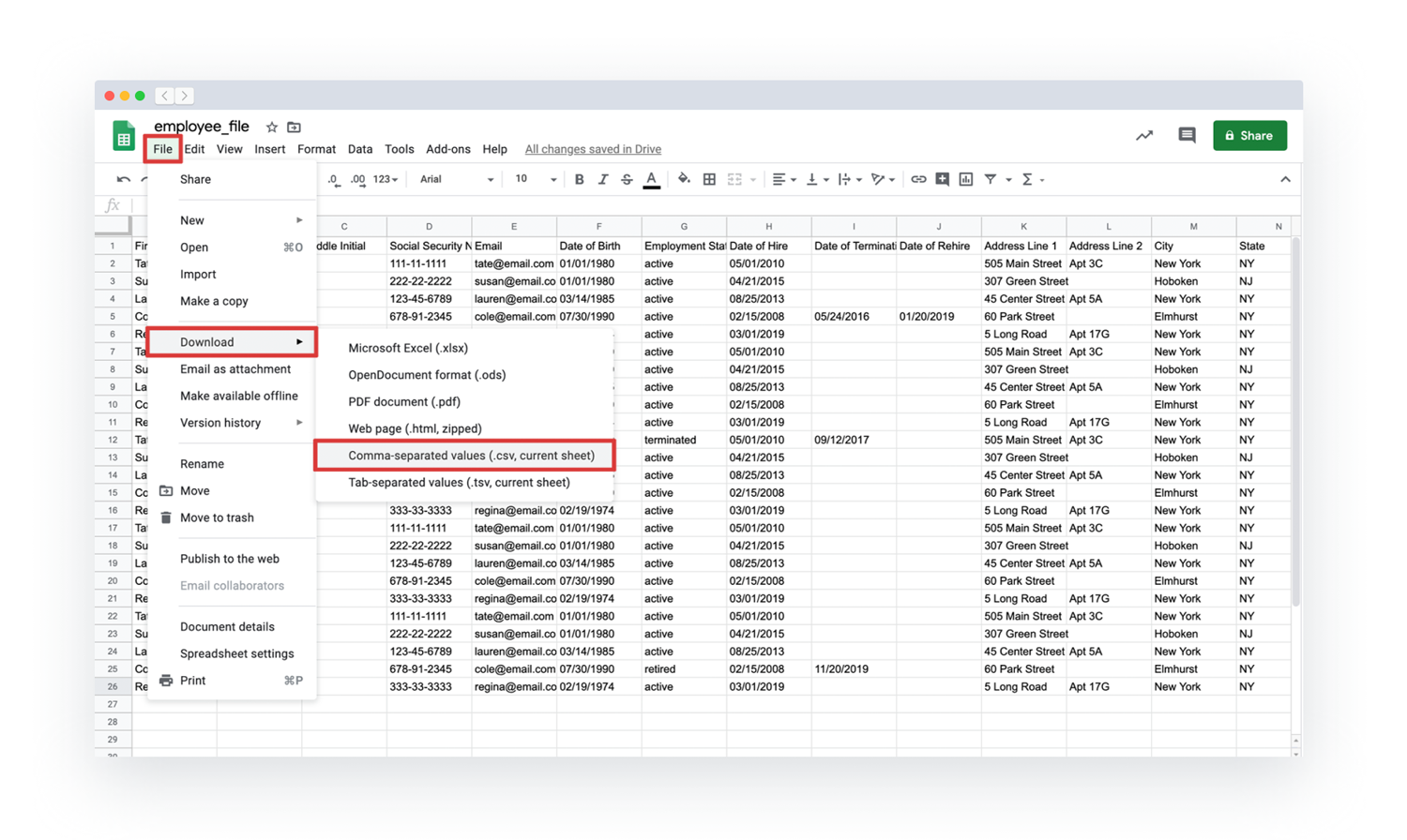
    A filled in Employee Upload template being exported as a CSV file from Google Sheets.

    Image is illustrative.

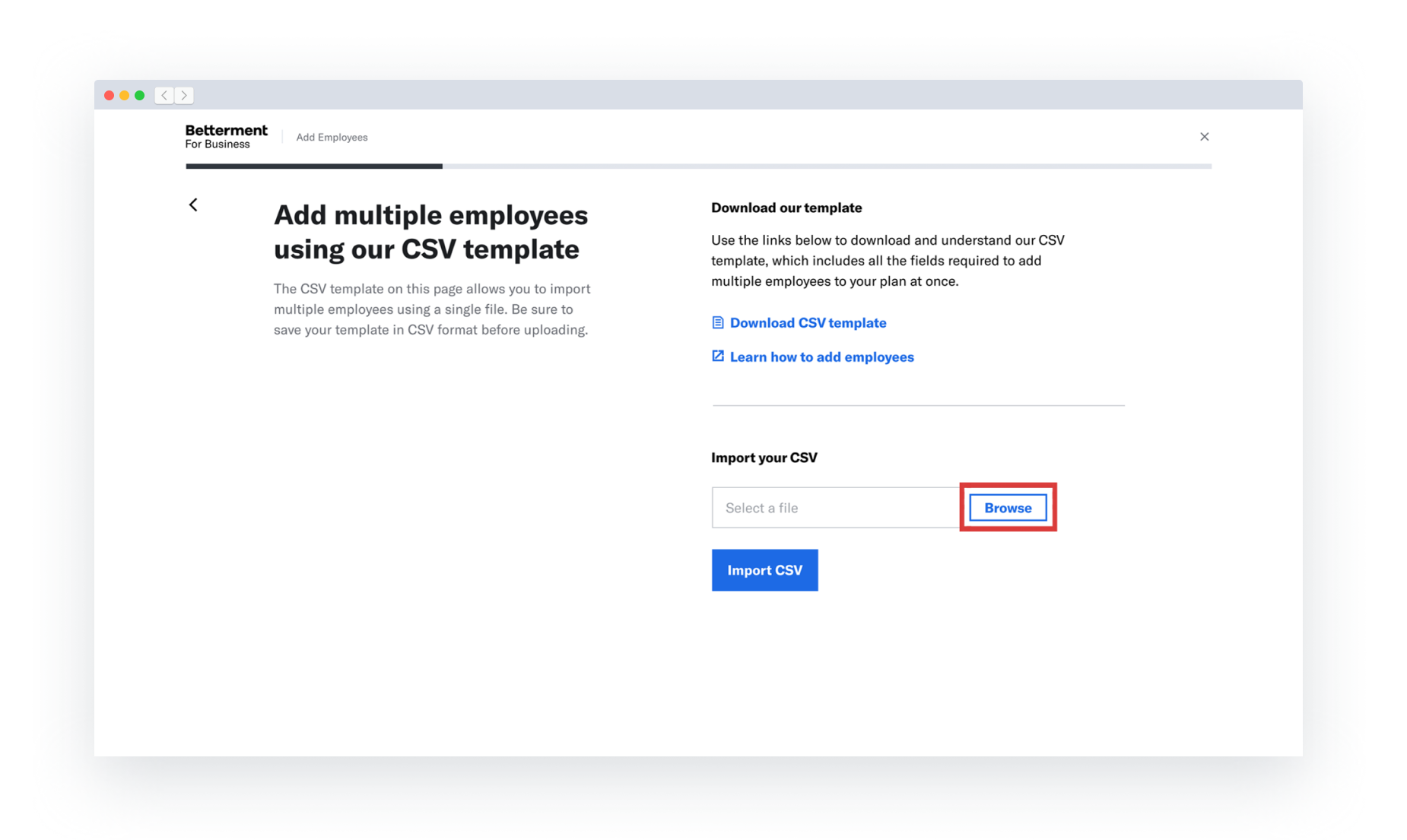
  2. Upload your CSV file to Betterment.

    The second step of the Multiple Employee Upload flow. The Browse button is highlighted.
  3. If you receive any errors after uploading your file, review the errors and make changes to your CSV file. Re-upload the file to Betterment after making changes.
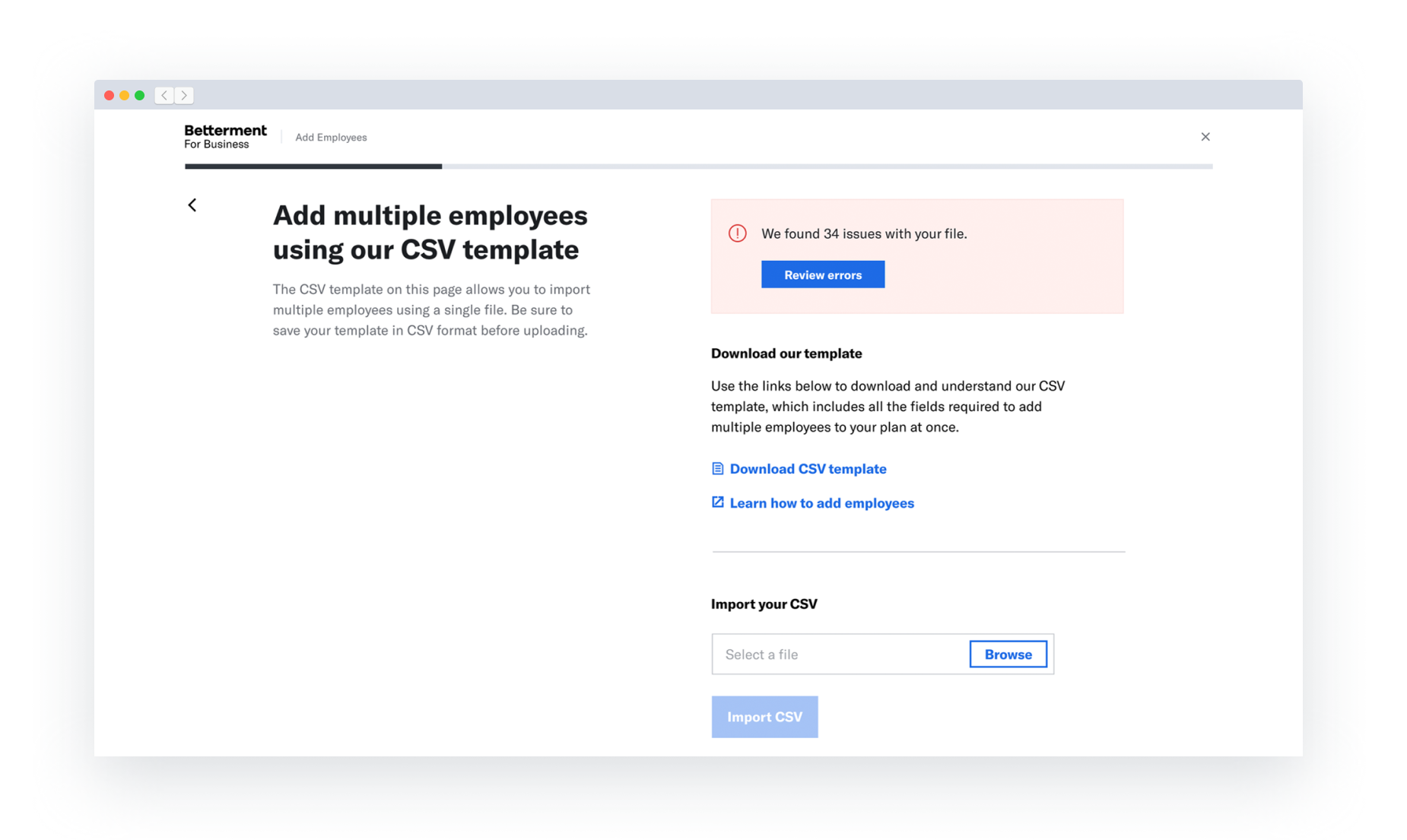
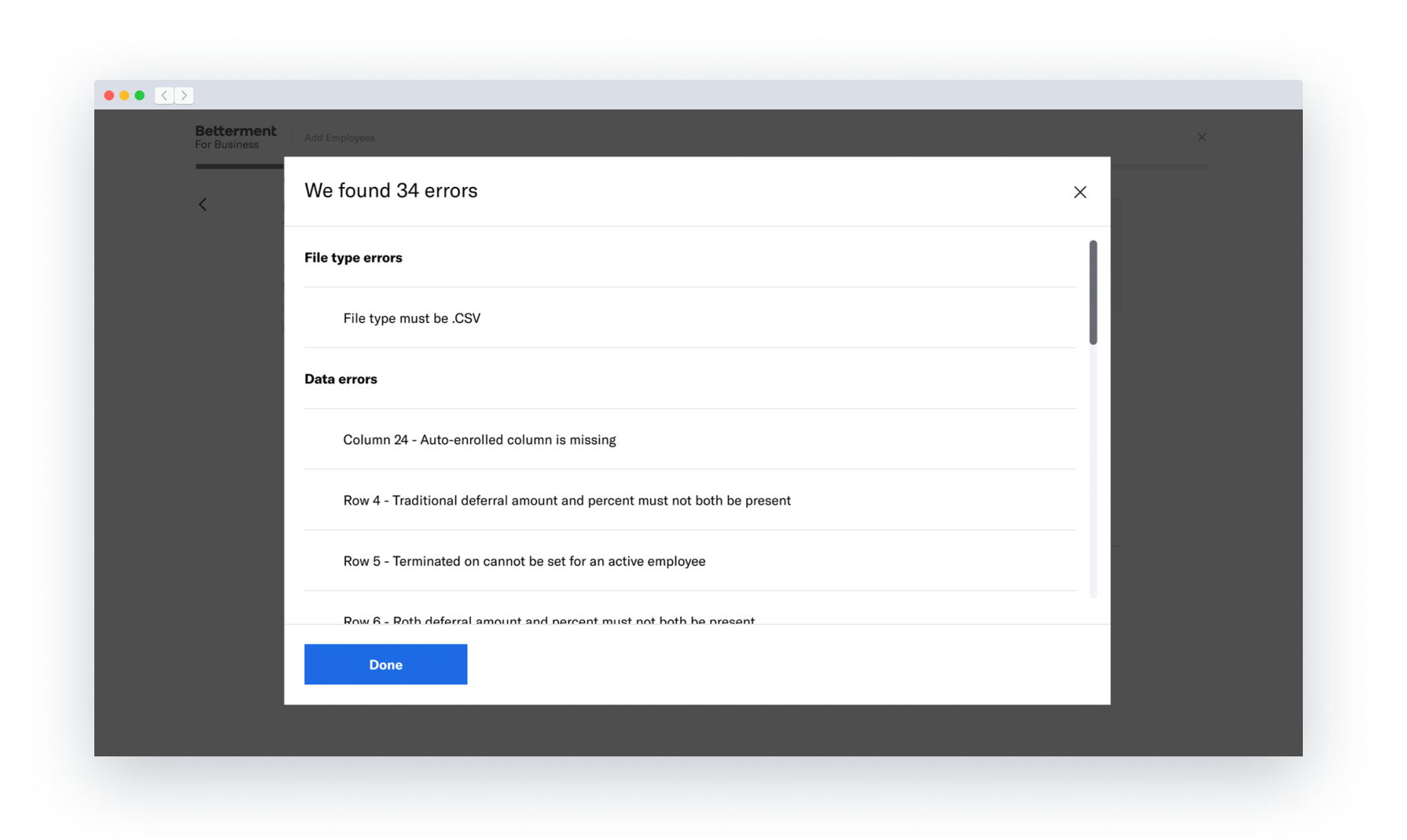
    The second step of the Multiple Employee Upload flow. A red flash error is present at the top of the screen. A Review Errors button is present. The second step of the Multiple Employee Upload flow. The Review Errors button has been clicked. A pop-up modal with a description of the upload errors is open.
  4. Once your file is accepted without any errors, you’ll be asked to review the names of the newly created employees. This helps ensure that you’re uploading the correct file to your plan. When you’re done reviewing, click the ‘Add employees’ button.
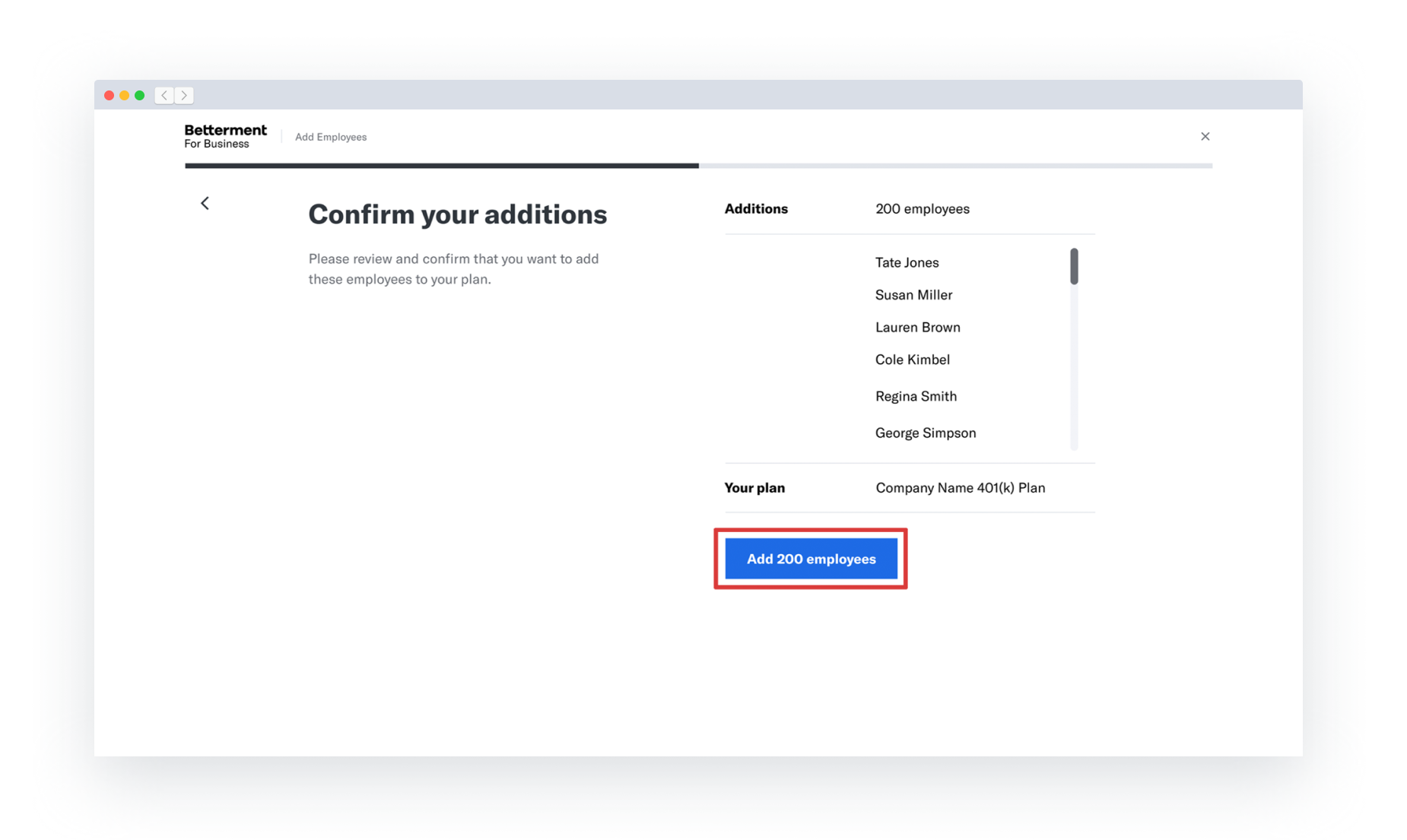
    The third step of the Multiple Employee Upload flow. A list of all the newly created employees is visible. The Add employees button is highlighted.

    Image is illustrative.

  5. Next, the upload process will begin. Once your employees have been uploaded, they’ll receive an email inviting them to complete the sign-up process.
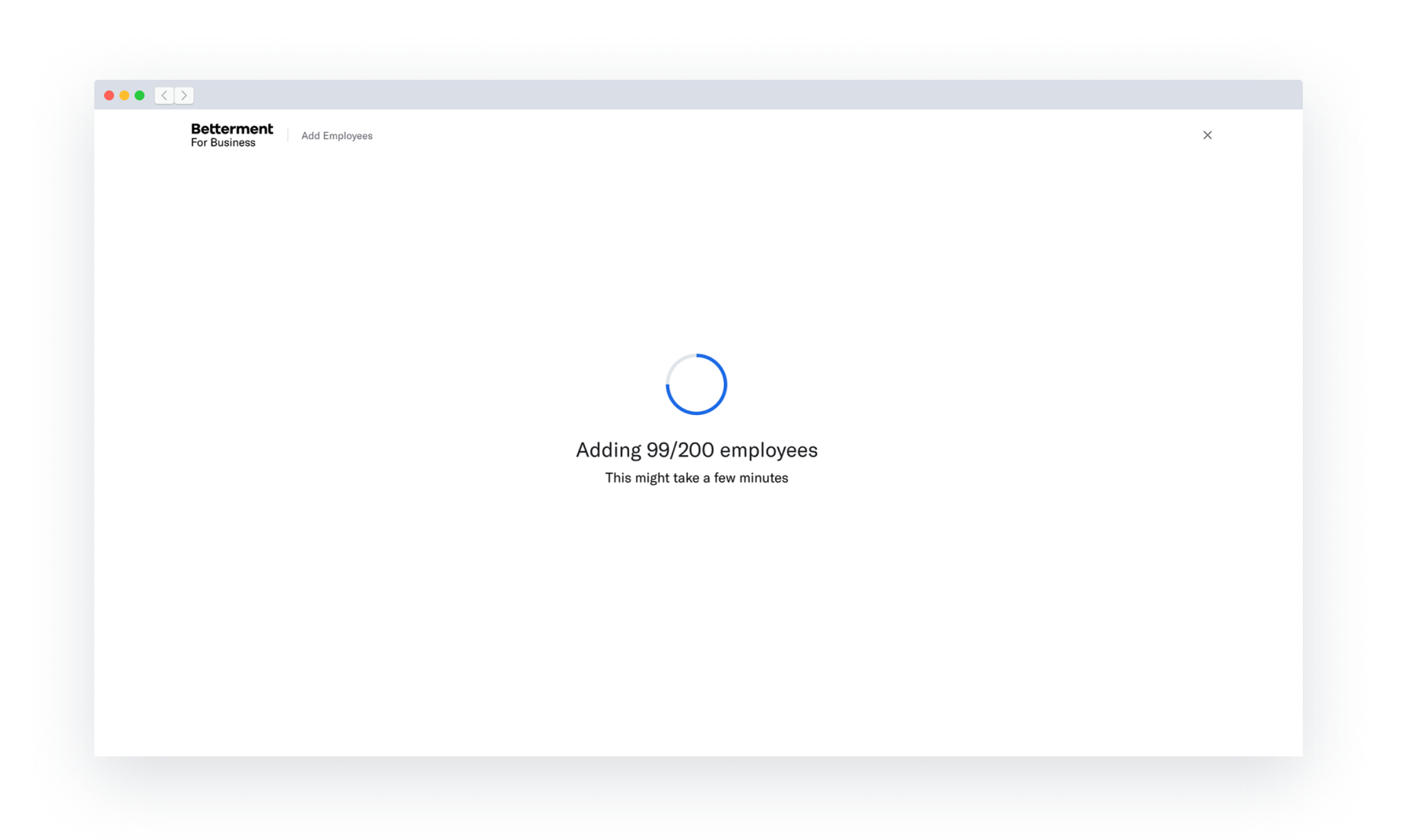
    The fourth step of the Multiple Employee Upload flow. A loading page is shown while employees are added to the plan.
  6. Finally, check the Employees page to make sure there are no outstanding errors that occurred during the employee creation process. Address any errors that may have occurred.
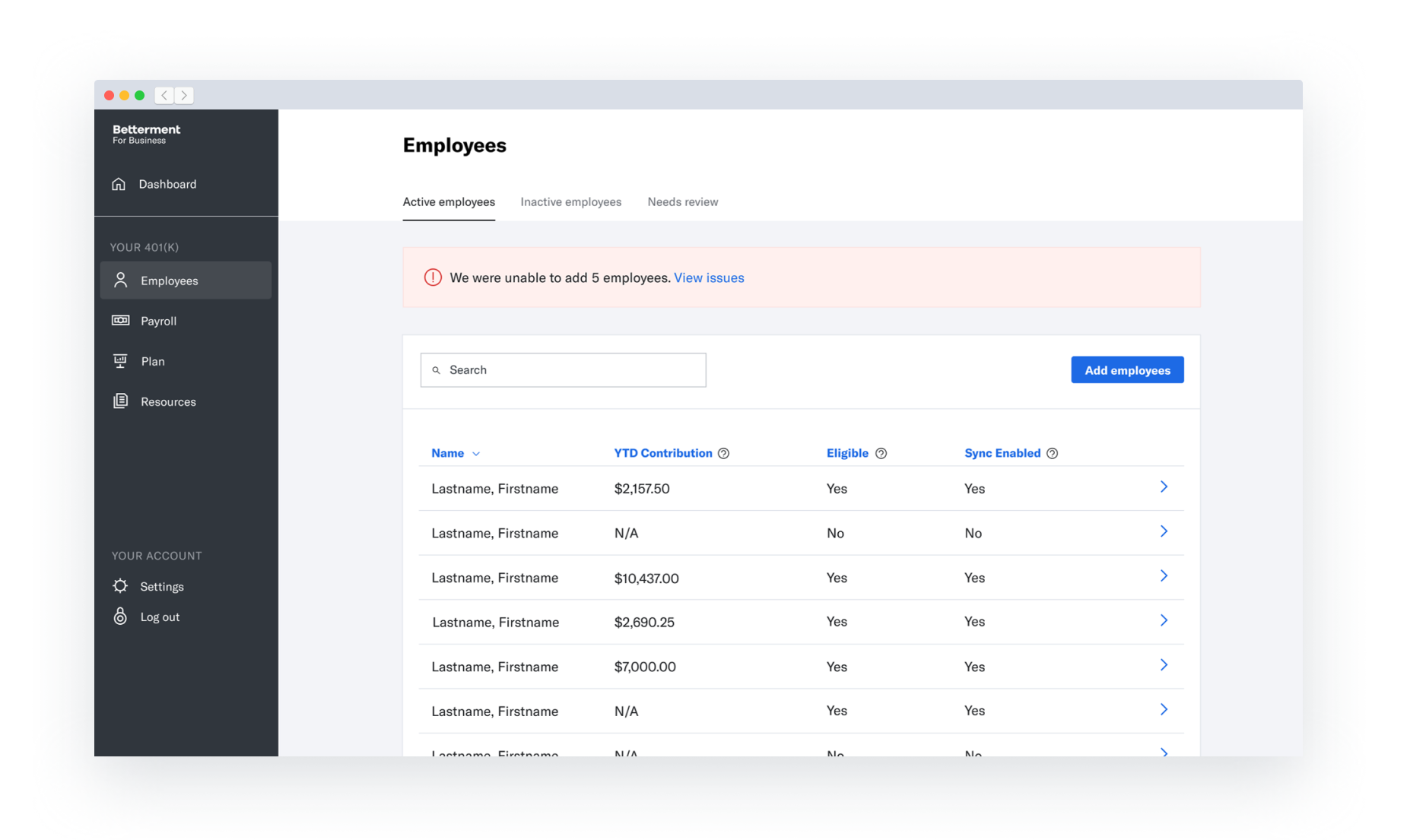
    The Employees page of the Betterment 401k plan sponsor dashboard. A red flash error is present at the top of the screen. A View issues link is present.
  7. You’re all set! All new participant profiles will be visible on the employees page. You can return to the Employees page to make changes to an employee’s profile at any time.
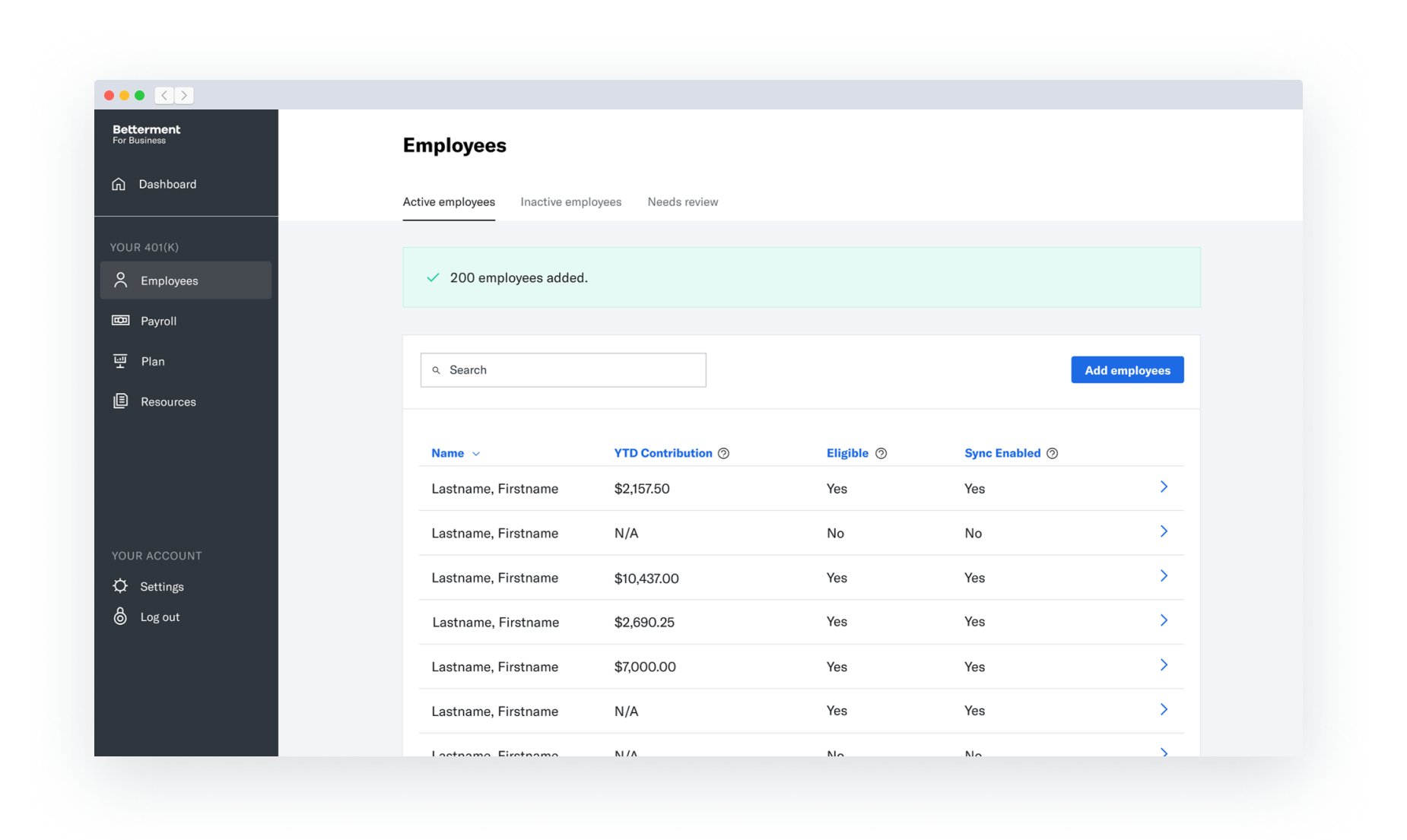
    The Employees page of the Betterment 401k plan sponsor dashboard. A green success message is present at the top of the screen. All employees have been successfully added to the plan.

Frequently Asked Questions

Do I have to do anything else? Nope! You’re all set. Betterment will email all required disclosures to your new plan participants.

Do I have to send any notices to my employees? No, Betterment will send all notices to your employees automatically via email.

When will my employees be alerted? Employees will be notified by email as soon as their account is created.

How can my employees join the plan after I upload their information to Betterment? Employees can check their email for an invite from Betterment to complete the sign-up process.

My employee has a P.O. Box as their address. Can I use that address with Betterment? No. To comply with regulations for opening accounts, we require a physical address to verify an employee's identity. Betterment will not send physical mail to an employee’s address (unless they opt into paper statements, which is rare); we will otherwise only use their physical address for account verification.

Questions? Contact us.

Betterment’s editorial team draws on decades of combined experience to bring you clear, practical points of view on personal finance, investing, and long-term wealth. Together, we demystify money decisions, help you size up options, and share the knowledge needed to build wealth with confidence and ease.