OnboardingSetting up client accounts

FOR NEW CLIENTS
How to invite a new client
When a client decides to manage their money with Betterment, they’ll need to set up an account with your help. If they already have an existing Betterment account, you can add yourself as their advisor in a few simple steps.
 Navigate to the Summary page in your advisor dashboard, and select Invite Client. You can fill in the client’s personal information or invite your client, via email, to set up their own account directly.
Please note: When filling out the invite link on behalf of your client(s), you are only required to input the client’s name, email address, and date of birth. Other personal information, such as residential address, phone number, and employment status, is optional.
 Choose what type of account(s) to open for your client. You can set up multiple legal accounts per household.
Here are the account types you can choose from:
- Individual taxable account
- Individual Cash Reserve
- Joint taxable account
- Joint Cash Reserve
- Traditional IRA
- Roth IRA
- SEP IRA
- Solo 401(k)
 Additional account types can only be set up once a client already has one of the above accounts opened.
 If your client is moving assets from another custodian, you can initiate the transfer requests in the onboarding flow.
Upload a copy of their brokerage statement and our AI-powered document reader will extract account details and positions automatically to pre-fill the transfer request.
Review the extracted positions, including estimated values and share counts. Set portfolio strategy and adjust rebalancing preferences to control how assets are handled once transferred.
Your client will then approve both their transfers and new accounts in one flow, initiating ACATs automatically once their identity verification is complete.
 Your client will then receive an email, instructing them on how to open their account. They’ll need to confirm their personal details, email address, and set up a password with security questions. They may also be prompted to submit documentation to verify their identity.
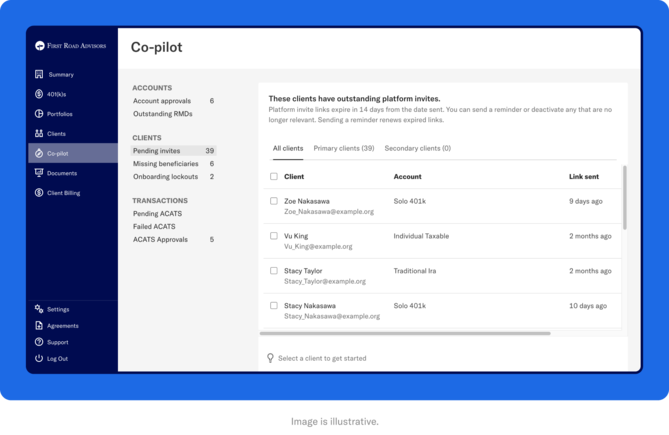
Sign-up links will expire in 14 days. You can track the status of these emails, resend invitations, or deactivate invitations under the in Co-pilot tab in your advisor dashboard.
FOR NEW CLIENTS
Clients with an existing Betterment account
If you try to send a sign-up email to a client who already has a Betterment Retail account, they will be unable to create a new profile with your invitation link.
If the client is unaware of their original Betterment account, it’s possible that the account may have been created by an employer or a joint account holder. For assistance troubleshooting, please direct the client to contact Betterment at 718-400-6898 and select the “Account access” option.
To add a financial advisor to an existing Betterment account, clients should follow the steps below:
First, clients should email support@BettermentAdvisorSolutions.com from the email address associated with their original Betterment account. They will need to confirm the following:
- That they have reviewed and agreed to have their account managed under the Betterment Advisor Solutions agreements.
- The name of the client’s new advisor and their firm.
Once we have confirmation from the client, we will move their account from Betterment Retail to the advised platform, under their selected advisor.
Please note: Clients will not be asked to sign firm and advisor-specific agreements in this process. The client’s advisor is responsible for delivering any required agreements and disclosures to the client.
FOR NEW CLIENTS
Client account verification
Sometimes, Betterment will request additional documentation from the client to verify their identity before we can approve their account.
Until Betterment receives and approves the documentation, the client’s account will be suspended.
To check if an account is locked, advisors can go into Co-pilot, and select Onboarding lockouts. Here, advisors can see the latest account statuses, resend document upload instructions, upload documents on behalf of your clients, or remove clients from the list.
When clients are ready to upload the required documentation, they can sign in to their account and select Settings > Fix account. There, they will see a list of required documents with links to upload.
Alternatively, clients and advisors can contact support@BettermentAdvisorSolutions.com to receive a secure link to upload their documents. The timeline for Betterment to review documents depends on the volume of requests but can take up to 5 business days.
Help clients prepare by encouraging them to have these items ready:
 A color photo ID
A self portrait (selfie)
A document that proves their address
Their Social Security card, W-2, or ITIN
Below is an overview of acceptable forms of client verification:
ACCOUNT LINKING
Linking an external account
Clients can link multiple bank and investment accounts, via web browser or mobile app:
Via web browser
Navigate to Settings > External accounts > Link an account.
Via mobile app
Log in to the Betterment app, then tap the three bars on the top left menu.
Navigate to Settings > External accounts > Link an account.
Clients have two options when linking an account:
- Log in using bank credentials (instant connection)
- Connect manually by account and routing number (1–2 business days)
The manual linking option is often used with smaller institutions, like credit unions. In this process, Betterment will send two micro-deposits that are less than $1 via ACH to the client’s bank account. The micro-deposits can take up to 1–2 business days to arrive. Once received, the client enters the amounts via Settings > External accounts.
Accounts with an account and routing number are marked with a bank icon and appear automatically in all funding flows. Investment and other accounts without a bank icon are view-only: clients and advisors see them in the Betterment dashboard for a fuller financial picture, but they can't be used for deposits or withdrawals.
Pairing a spousal account
For clients, pairing a spouse's Betterment account with theirs provides a combined view of shared goals and projections.
Your client can pair their spouse’s Betterment account the same as they would link any other external account:
- Ask their spouse to log in to their Betterment account and navigate to “Settings” > “Security”
- Under “App Passwords,” click “Generate a new password”
- Now, log in to their own Betterment account and navigate to “Settings” > “External accounts”
- Select "Link an account"
- Follow the prompts and search for “Betterment” in the “Find institution” search bar
- Enter the email address and newly-generated app password associated with their spouse’s Betterment account
- Click “Submit”
They now have view-only access to their spouse’s Betterment account balance. They can hide duplicate account balances, such as joint accounts, by navigating to Settings > External accounts > Edit > Hide.
DEPOSITS
How to make a deposit
After a client links an eligible bank account, both the client and advisor can make an electronic ACH deposit into the client’s account. Betterment does not accept check deposits.
To initiate a deposit on your client’s behalf:
Select the client in your advisor dashboard.
Toggle between All accounts and Goals to explore different views. An account holds client investments, while a goal is an optional financial planning feature that adds personalization to how accounts are managed.
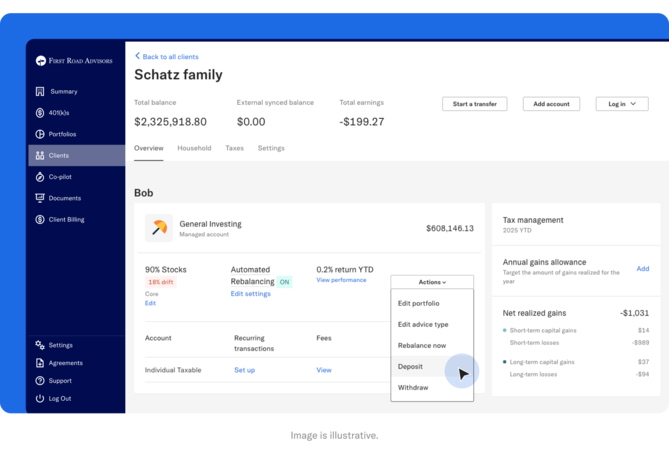
On either view, navigate to the three Actions dots > Deposit, where you’ll be prompted to log in as your client and enter the deposit amount.
Select the account/goal > Select bank account > Enter amount.
Deposits typically take 1–3 business days to complete.
Generating wire transfer deposits
Deposits can also be made via wire transfer. Although this option is less common, you can generate instructions for a wire transfer by logging in as the client and selecting Transfers > Other ways to transfer > Wire transfer. A unique account number is generated for each transfer.
Setting up automatic recurring deposits
This follows the same navigational flow as initiating a deposit. Set up a recurring deposit, and then choose the amount and frequency. You can also schedule the start date for your recurring deposits.
Deposits take 1-3 business days to complete.
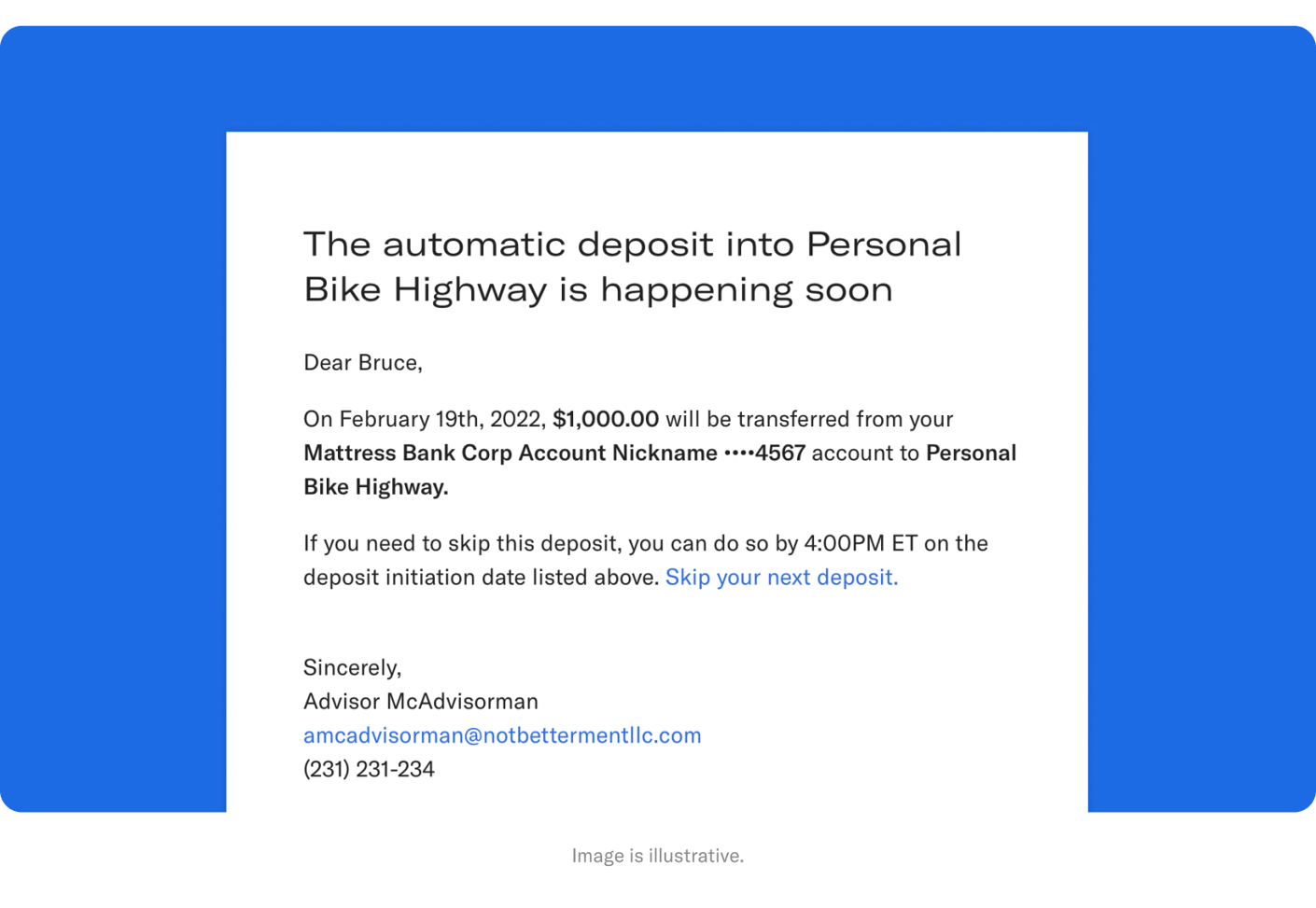
The day before a recurring deposit is scheduled to take place, the client will receive an email letting them know they can make changes before money is withdrawn from their bank account. If they want to skip a recurring deposit, they can select this option in the email. They will then be prompted to log into their account, where they can manually skip it.
Clients can review and manage all recurring deposits in their account by selecting Transfers > Pending transfers.
WITHDRAWALS
Setting up withdrawals
After a client links an eligible bank account, both client and advisor can withdraw funds from the client’s investment accounts to a linked bank account.
To initiate a withdrawal on your client’s behalf:
Select the client in your advisor dashboard.
Toggle between All accounts and Goals to explore different views. An account holds client investments, while a goal is an optional financial planning feature that adds personalization to how accounts are managed.
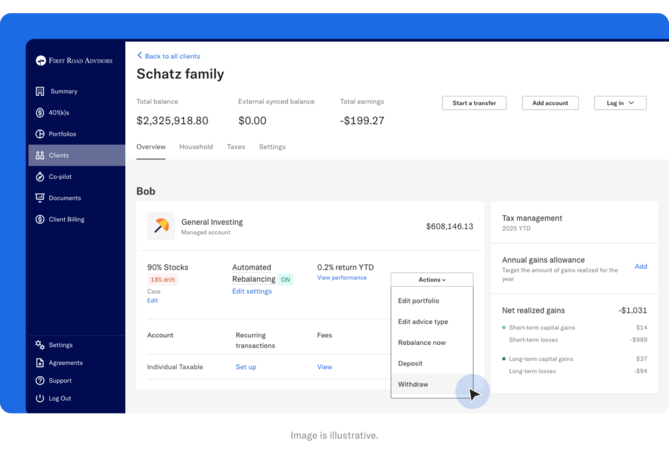
On either view, select Withdraw in the dropdown menu, and you’ll be prompted to log in as your client.
Navigate to Select account/goal > Select bank account > Enter amount. You also have the option to change the linked bank account, if needed.
Within goals, clients can choose to receive “Retirement income” advice. They can also schedule recurring withdrawals from these goals—as long as they are not in a tax-coordinated portfolio (TCP). If they want to establish an auto-withdrawal from a retirement goal that is in a TCP, please let us know at support@BettermentAdvisorSolutions.com so that we can provide instructions on how to request the TCP be dismantled.
You can establish auto-withdrawals for the client by following the steps below:
- Log into your Advisor Dashboard and select the desired client from the Clients list
- Select the Goals header under the Accounts section
- On the applicable goal, select ... > Edit goal details
- Update the client's advice type to "Retired and looking to make regular withdrawals"
- Submit the changes and select to initiate a withdrawal
- You will now have the option to establish a recurring withdrawal from the client's goal to their linked bank account on file.
Withdrawals typically take 4-5 business days to complete.
BENEFICIARIES
Add and update beneficiaries
Here’s how clients can add and update their account beneficiaries:
Navigate to Settings > Accounts > Beneficiaries.
Add primary and contingent beneficiaries.
Advisors cannot edit beneficiaries on behalf of their clients, they can use Co-pilot to view accounts that have none listed and send their clients reminder emails, encouraging them to add beneficiaries.
Get support you can count on
Contact our team:
support@BettermentAdvisorSolutions.com
(888) 646-2581 Monday–Friday, 9am–6pm ET